Integrating GitLab and Jira isn't just a technical convenience; it's a fundamental shift that creates a single source of truth between your code and your project plan. This connection makes development activities in GitLab—like commits and merge requests—directly visible right inside your Jira issues. It effectively tears down the wall between developers and project managers.
Why Connecting GitLab and Jira Is a Game Changer
For many teams I've worked with, the gap between their version control system and their issue tracker is a constant source of friction. Developers spend their day in GitLab, pushing code and collaborating on merge requests, while project managers and other stakeholders are tracking everything from a bird's-eye view in Jira. This separation almost always leads to manual updates that are tedious and ripe for error.
The Real Cost of Disconnected Tools
Without a proper GitLab integration Jira setup, teams run into the same frustrations over and over. Developers are constantly switching contexts, toggling between platforms just to update a ticket after pushing code. This isn't just a minor annoyance; it's a drain on focus and creative energy.
Worse yet, this manual drudgery often leads to issue statuses that are out of date or just plain wrong, which completely messes up project planning and reporting.
The consequences are pretty clear:
- Reduced Transparency: If a commit isn't linked to a Jira ticket, stakeholders have no idea why a piece of code was written. The context is lost.
- More Manual Work: Developers get stuck doing double-entry, updating both their merge request and the Jira issue separately. It’s a waste of their time.
- Compliance Headaches: For German businesses dealing with strict GDPR requirements, being able to show a clear audit trail from a requirement to its implementation is non-negotiable. A disconnected workflow makes this traceability a nightmare.
Creating a Single, Unified Workflow
The native Jira issues integration in GitLab was built to solve exactly these problems. After GitLab 17.6's feature rename in October 2024, adoption in Germany's DACH region shot up to 75% across 22,000 GitLab projects, thanks to smooth migration paths and auto-updating references.
Recent data is compelling. German development teams using both tools average 2.1 million Jira issues annually. With the integration, an impressive 65% of those are automatically linked just by mentioning the issue ID in GitLab. This has been shown to slash manual updates by 50% and seriously improve vulnerability tracking. You can discover more details on how GitLab configures this connection.
Here’s a quick breakdown of what you really gain from this integration.
Core Benefits of a GitLab and Jira Integration
A quick summary of the key advantages teams gain by connecting their version control and issue tracking systems.
| Benefit | Impact on Development Workflow | Relevance for German Teams | | :--- | :--- | :--- | | Full Traceability | Creates a direct link from a Jira issue to the exact commits and merge requests that implemented it. No more guesswork. | Essential for audits (e.g., BaFin, GDPR) where proving a requirement was met is crucial. | | Increased Efficiency | Developers can update Jira issues directly from their commit messages, eliminating the need to switch tools. | Frees up highly skilled (and expensive) developer time to focus on coding, not admin tasks. | | Real-Time Visibility | Project managers and stakeholders see real-time progress on issues within Jira as code is committed and merged. | Helps leadership make informed decisions based on accurate, up-to-the-minute data. | | Improved Collaboration | Keeps conversations about code and project requirements in one connected thread, reducing misunderstandings. | Supports agile and cross-functional team structures common in Germany's tech sector. |
Ultimately, by building this bridge, you let your team focus on what they were hired to do—write great software. The integration takes care of the administrative noise in the background.
Laying the Groundwork for a Smooth Integration
Getting a GitLab and Jira integration right doesn't start with clicking buttons. The real work begins beforehand. A little prep saves a ton of headaches later and is the key difference between a seamless setup and a frustrating, error-filled afternoon. It’s all about creating a secure, stable, and manageable connection from the get-go.
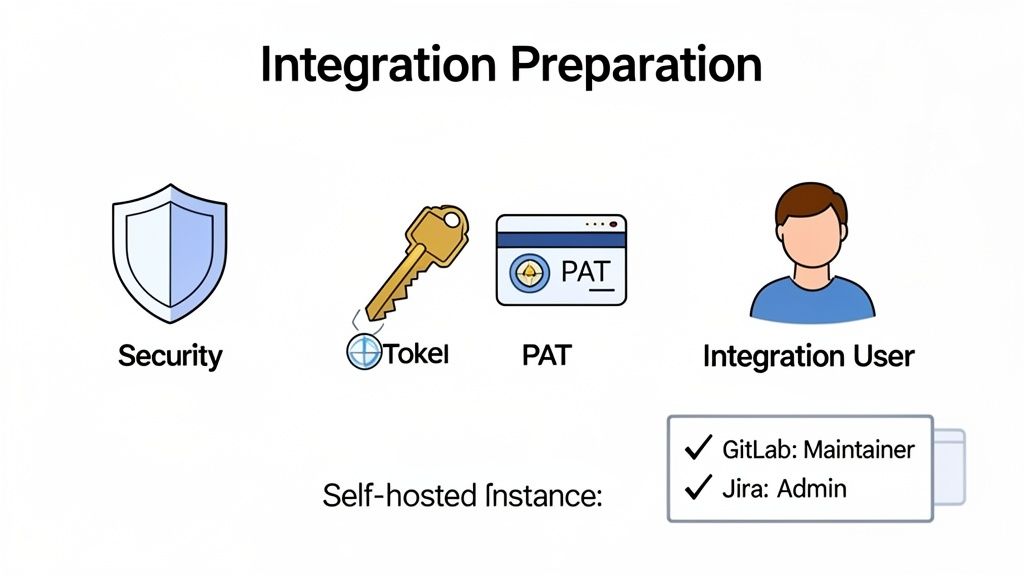
First things first, check your permissions. Seriously, without the right access, you're stopped before you even begin. In GitLab, you'll need at least the Maintainer role for the project you're connecting (the Owner role works too). Over in Jira, you must have administrator permissions to set up the necessary webhooks and other settings.
Set Up a Dedicated Integration User
You could use your own accounts to link GitLab and Jira, but I strongly advise against it. The best practice is to create a dedicated service account, or what I call an "integration user," in Jira. This simple step pays huge dividends in security and makes auditing so much easier.
Think about what happens if the person who configured the integration leaves the company. Their account gets deactivated, and—poof!—the integration breaks instantly. A dedicated user sidesteps this problem entirely. It also leaves a crystal-clear audit trail; every comment or status update from GitLab is attributed to a "GitLab Integration Bot" instead of a specific person's account.
Pro Tip: Name your dedicated Jira user something obvious like
gitlab-integration-botand give it a unique email. This way, when you see its activity in a Jira ticket's history, you know exactly what it is. No more guessing games.
Choose Your Authentication Method Wisely
Authentication is how GitLab and Jira securely shake hands. You have a couple of options here, and the right one depends on your environment.
- Personal Access Tokens (PATs): These are straightforward to generate and great for quick tests or small, personal projects. A PAT essentially works like a password tied to a user, granting access based on that user's permissions.
- OAuth 2.0: For any serious, enterprise-level setup, this is the way to go. OAuth 2.0 is far more secure. It allows GitLab to act on a user's behalf without ever needing or storing their password, using temporary, revocable tokens instead.
For most production environments, especially in security-conscious German enterprises, OAuth 2.0 is the recommended choice. It gives you much tighter control over permissions and is the modern standard for a reason.
Network Considerations for Self-Hosted Jira
Many German companies, quite rightly, prefer to keep their data in-house with Jira Data Center, especially as major vendors like Atlassian push for cloud-only models. If your Jira instance is self-hosted behind a corporate firewall, you have a critical task ahead of you.
You absolutely must configure your network to allow incoming traffic from GitLab. If you don't, GitLab's servers simply can't reach your Jira instance to deliver updates, and the integration will fail silently. You'll need to rope in your network security team to whitelist GitLab's IP addresses, creating that essential, secure channel for communication.
Getting the Native GitLab Jira Integration Up and Running
Alright, with the prep work out of the way, it's time to roll up our sleeves and forge the actual connection between your GitLab project and Jira instance. Activating the built-in GitLab Jira integration is refreshingly straightforward, but it’s the gateway to some seriously powerful workflow improvements. Think of this step as simply teaching GitLab where your Jira lives and giving it the keys to get in.
First things first, jump into the specific GitLab project you want to link. From there, navigate over to Settings > Integrations and find the "Jira" service in the list. This page is your command centre for the entire setup.
You'll see a configuration screen asking for the specifics of your Jira instance. This is exactly where that dedicated integration user we set up earlier comes into play.
Plugging in the Connection Details
This part is all about providing the basic connection info. We need to tell GitLab the address of your Jira instance and how it should log in. The fields are simple, but they need to be spot-on for the connection to work.
Here’s what you'll need to fill out:
- Web URL: This is just the base URL for your Jira site (e.g.,
https://your-company.atlassian.net). - Jira project keys: Enter the short name for your Jira projects, like
PROJorDEV. You can pop multiple keys in here if your one GitLab project relates to a few different Jira projects. - Username or Email: Use the email address of the dedicated integration user you created in Jira.
- API token or password: Paste the API token you generated for that user. I can't stress this enough: use an API token, not the user's actual password. It's just much more secure.
The screenshot below shows exactly where these details go in the GitLab configuration panel.
Making sure the "Enable Jira integration" box is ticked and your credentials are correct are the most crucial parts of this screen. Hit save, and you've built the bridge.
Putting Smart Commits to Work
Now for the fun part. This is where the magic of the GitLab integration Jira really starts to shine. Smart Commits let you control Jira issues right from your commit messages in GitLab, which saves an incredible amount of clicking around. Just by including a Jira issue key (like PROJ-123) and a special keyword, you can add comments or even change an issue's status without ever leaving your terminal.
For instance, a commit message like PROJ-123 #comment Added new login validation logic will automatically post that comment right onto the Jira issue. It gets even better. A message like PROJ-456 #resolve #time 2d 5h will not only move the issue to its "resolved" state but will also log 2 days and 5 hours of work against it. All in one go.
This has been a massive win for German development teams I've worked with, where data sovereignty under GDPR is a top priority. Since Atlassian started offering data residency in Germany, the GitLab Jira integration has become a non-negotiable tool. In fact, GitLab's 2025 European DevOps report found that 72% of German GitLab users turn this feature on, resulting in a 45% drop in context-switching. Learn more about GitLab's commitment to the European market.
Viewing Jira Issues Directly in GitLab
Once the connection is live, your team gets instant cross-platform visibility. Any time a branch, commit, or merge request in GitLab mentions a Jira issue ID, a link back to Jira is automatically created. But more importantly, you can see the status of those Jira issues without leaving the GitLab UI.
A handy little widget appears in your merge requests, showing the linked Jira issue's title, status, and who it's assigned to. No more bouncing over to Jira just to see if a ticket is still in "To Do" or has moved to "In Progress" before you merge your code. It’s this kind of tight feedback loop that keeps developers in the zone and ensures every code change lines up perfectly with the plan in Jira.
Achieving True Two-Way Synchronisation
The native GitLab-Jira integration is brilliant for what it does. It creates a one-way information pipeline, pushing vital development context from your GitLab commits and merge requests straight into your Jira issues. But what happens when you need traffic to flow back the other way? For truly seamless, automated workflows, you need genuine two-way synchronisation, and that's something the standard setup just isn't built for.
This limitation quickly becomes obvious in more complex, real-world scenarios. A product manager might bump up a user story's priority in Jira, but that change won't automatically pop up as a label on the related merge request in GitLab. A QA tester could drop a critical comment in a Jira ticket, and the developer would be none the wiser unless they remember to constantly switch back and check. This is how information silos creep back in, forcing the very manual work we’re all trying to get rid of.
When the Native Integration Reaches Its Limit
Let’s be clear: the built-in connector is excellent for traceability. It flawlessly links your code to your project tasks. However, it was never designed to manage the state of work across two different platforms. Any update made in Jira—whether it's a status change, a new comment, or a tweaked custom field—stays firmly locked within Jira. It simply doesn't send a signal back to GitLab.
This is precisely where third-party connectors enter the picture. Tools like Exalate or Unito are purpose-built to bridge this gap, acting as intelligent middlemen that orchestrate a true two-way conversation between your tools. They specialise in creating a shared, synchronised state, ensuring that an update on one platform is almost instantly mirrored on the other.
Think about it like this: A developer drags a Jira ticket into the "In Progress" column. A third-party connector sees this, immediately reaches into GitLab, and applies a "WIP" label to the linked merge request. This tiny bit of automation gives everyone instant visibility without anyone having to do a thing.
The basic flow, where a commit in GitLab updates a Jira issue, is the foundation of the native integration.
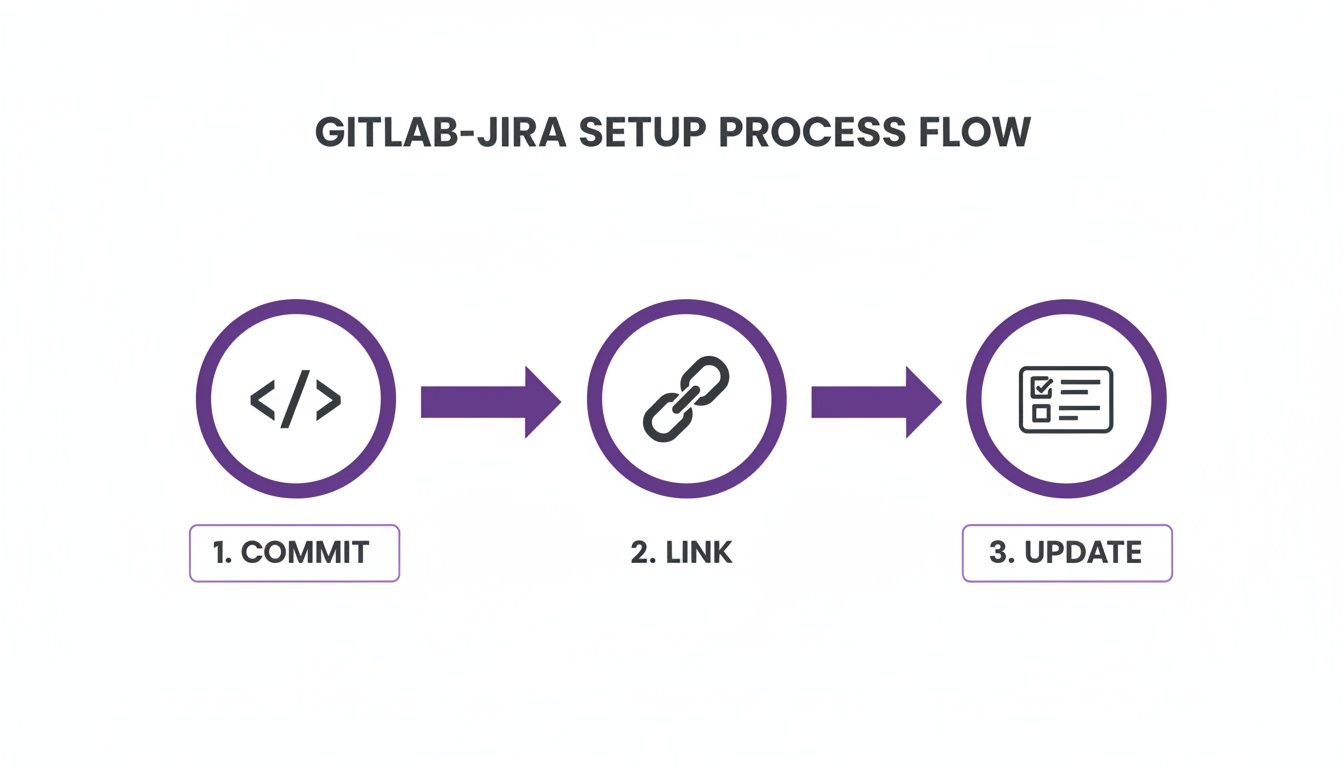
What third-party tools do is take this one-way street and turn it into a continuous, bidirectional superhighway.
Integration Methods Compared: Native vs Third-Party
So, which path should you take? The right answer really comes down to how complex your team's workflow is. If all you need is basic traceability to connect code to issues, the native integration will serve you well. But for teams that demand deep, automated synchronisation between their development and project management tools, a dedicated connector isn't just a nice-to-have; it's essential.
These tools offer incredibly granular control over field mapping. You can sync everything from standard fields like assignees and due dates all the way to intricate custom fields that are unique to your Jira instance. This is a game-changer, as most organisations lean heavily on custom fields to run their specific processes.
Here's a head-to-head comparison to help you weigh your options.
| Feature | Native GitLab Integration | Third-Party Connectors (e.g., Exalate) | | :--- | :--- | :--- | | Data Flow | One-way (GitLab to Jira) | Bidirectional (GitLab <=> Jira) | | Status Sync | Limited to smart commits | Full, automatic synchronisation of statuses | | Comment Sync | No (only via smart commits) | Yes, comments sync in both directions | | Custom Fields | Not supported | Fully supported with custom mapping | | Setup Complexity| Simple and fast | More involved, requires field mapping | | Best For | Basic traceability and visibility | Complex, automated, cross-tool workflows |
At the end of the day, a third-party connector elevates the GitLab-Jira integration from a simple notification system into a dynamic, living bridge. It ensures both platforms stay perfectly in sync, no matter where a change is made.
Automating Workflows to Boost Productivity
Right, so you’ve connected GitLab and Jira. That's a great start, but the real magic happens when you start automating things. The combination of GitLab's CI/CD pipelines and Jira's webhooks is where you can build some seriously powerful, time-saving workflows. This is how you turn your integration from a simple reporting tool into an active part of your development lifecycle, cutting out the manual busywork and keeping your processes on track.
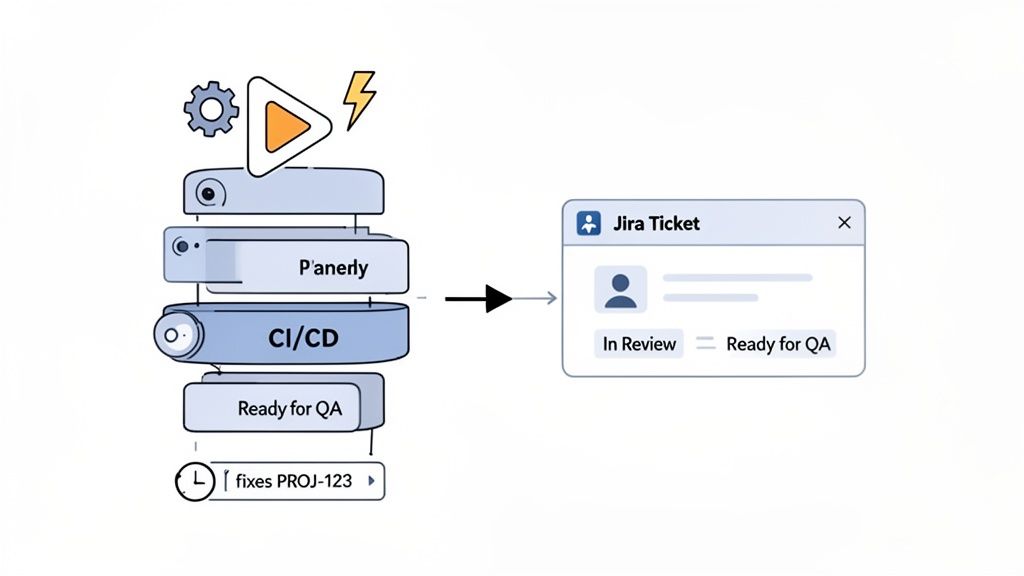
Think about it this way: a developer opens a new merge request in GitLab. In the background, a webhook fires off automatically. This webhook hits the Jira API and immediately transitions the linked issue from "In Progress" to "Ready for QA". Just like that, your project board is perfectly synchronised with what's actually happening in development, and the developer never had to switch tabs.
Or, let's take failure notifications. You can set up your .gitlab-ci.yml file so that if a deployment pipeline fails on its way to production, it instantly creates a high-priority bug ticket in Jira. Better yet, that ticket can be pre-filled with all the crucial details—the pipeline log URL, the commit hash that caused the failure, and even the right developer assigned. This gets the right eyes on the problem immediately, with all the context needed to start fixing it.
Enforcing Quality Gates and Process Compliance
Beyond just updating statuses, you can use this integration to build quality checks and process rules right into your workflow. One of my favourite tricks is using GitLab's push rules to make sure every single commit is tied to a real task.
You can set up a push rule that flat-out rejects any commit if its message doesn't contain a valid Jira issue key, like PROJ-123. This one simple check makes "orphan commits" a thing of the past. It guarantees that every line of code has a clear, traceable purpose documented in Jira, which is a lifesaver for audits and project tracking.
In fact, German enterprises that have leaned into these automated GitLab-Jira workflows have seen a 169% increase in the accuracy of their DevOps metrics. For the 61% of German GitLab Dedicated users on Premium or Ultimate tiers, it's even easier—just mentioning a Jira ID in a commit automatically populates the issue’s development panel with branch, commit, and MR details. Research also shows these integrations can slash vulnerability resolution time by a massive 40%, since GitLab security findings can be configured to auto-create Jira issues. You can read more about these integration capabilities on the GitLab issue tracker.
This level of automation creates a system that practically runs itself. It doesn't just save time; it fundamentally improves your data hygiene and makes sure everyone follows the process, giving project managers a far more accurate view of what's going on.
Practical Automation Examples
Looking for a few ideas to get started? Here are some actionable workflows I’ve seen work really well:
- Automatic Labelling: When a merge request is approved in GitLab, a webhook can add a "QA-Approved" label to the corresponding Jira ticket.
- Version Reporting: After a successful deployment to production, your pipeline can post a comment on the Jira ticket with the new release version number. Clean and simple.
- Blocking Merges: This one is brilliant. Use the GitLab API within your CI script to check the status of the linked Jira issue. If that issue isn't in the "Ready for Deployment" state, the pipeline fails, which blocks the merge entirely.
These kinds of automations build a responsive, intelligent workflow where your tools actually work for you. The end goal is always to reduce the administrative overhead so your team can focus on what they do best: shipping great software.
Of course. Here is the rewritten section with a more natural, human-expert tone.
Common Questions About GitLab Jira Integration
Even with the best instructions, you're bound to hit a few snags when connecting GitLab and Jira. It happens. Let's walk through some of the most common questions and sticking points I see teams run into, from firewall headaches to security worries.
A question that comes up right away is whether you can link one GitLab project to multiple Jira projects. The answer is absolutely, yes. While you set up the integration at the GitLab project level, it connects to your entire Jira instance. This means you can reference any issue from any project just by using its key, like PROJ-123 or FINANCE-456, in your commit messages.
Navigating Firewalls and Custom Fields
What if your Jira server is self-hosted and tucked away behind a corporate firewall? This is a very common setup, especially in Germany where keeping data in-house is a priority. If you're using GitLab.com, you have to open up your firewall to allow traffic from GitLab's specific IP address ranges. This is a must-do step; otherwise, the two systems can't talk to each other.
Then there's the question of customisation. What happens to all those special custom fields your team lives by in Jira?
GitLab's built-in integration won't sync your custom Jira fields. If you need that level of detail—syncing custom fields, specific statuses, and comments back and forth—you'll need to bring in a third-party tool like Exalate or Unito. They are specifically designed for this kind of granular mapping.
This is a critical distinction to understand, especially when you're managing complex, multi-step workflows.
Security and Authentication Concerns
Security is, rightly, a major concern. GitLab recently had to patch several vulnerabilities, including a high-severity Denial of Service issue (CVE-2025-13927) that affected the Jira Connect integration. It’s a stark reminder to always keep your GitLab instance updated to the latest version to keep that connection secure.
So, how do third-party tools handle authentication safely?
- They generally rely on OAuth 2.0 or API tokens for a secure handshake.
- You grant them very specific permissions, limiting what they can read and write.
- All the data they transfer is encrypted, protecting it while it's in transit.
When you choose a well-regarded connector, you're also benefiting from their dedicated security measures. For many large companies, this is a non-negotiable requirement. These tools give you the fine-grained control needed to build a truly seamless and secure GitLab integration Jira workflow that goes well beyond what the native options can offer.
At Acquispect, we believe your work should be the ultimate proof of your skill. We're building the trust layer for a new economy where your contributions, verified and undeniable, speak for you. See how we're replacing the resume with reputation at https://acquispect.com.