Switching on Jira dark mode is more than just a cosmetic change – it's a practical shift that can genuinely improve your daily grind. This isn’t just about looking cool; it’s about reducing eye strain and helping you focus, which is why so many teams have been asking for it for years.
Why Jira Dark Mode Is More Than Just a Pretty Face
Let's get past the aesthetics. Sure, a dark theme looks sleek and modern, but the real payoff comes from the tangible benefits to your productivity. If you're a developer, project manager, or anyone else who practically lives in Jira, a darker interface can make a world of difference.
The most obvious win is less eye strain, especially if you're pulling a late-night coding session or sitting through a long planning meeting. Those bright white screens blast out a lot of blue light, which can lead to tired eyes, headaches, and even mess with your sleep. A dark theme turns down that glare, making it much more comfortable to stare at the screen for hours on end.
Sharpen Your Focus and Cut Out the Noise
A darker interface naturally fades into the background, letting the important stuff pop. Key elements like issue statuses, sprint progress bars, and due dates stand out more clearly, helping you zero in on what actually matters. The improved contrast guides your eye, making it easier to scan complex dashboards and backlogs without getting distracted by visual clutter.
This subtle shift can help you stay in the zone for longer. Instead of your eyes constantly fighting the brightness of the screen, the muted tones create a more immersive environment. It's like dimming the lights in a cockpit so you can focus on the critical controls.
By quieting the visual noise, a dark theme helps your brain process information more efficiently. You spend less mental energy just looking at the screen, which frees up brainpower for actual problem-solving.
The Real-World Benefits for Your Team
When you see it this way, it’s easy to understand why this has been one of the most-requested features for so long. For teams spread across different time zones or people working in dimly lit offices, a consistent dark theme makes the user experience better for everyone. It’s a small tweak that respects the different ways modern teams work and solves a common, everyday annoyance.
Choosing the Right Dark Mode Method for Your Jira Setup
So, you're ready to switch Jira to dark mode. Smart move. But picking how to do it isn't as simple as flipping a switch. Your best bet really hinges on your Jira setup—whether you're on Cloud or Data Center—and what you're trying to achieve. Are you just looking for some personal eye relief, or do you need a consistent, branded look for your entire organisation?
You've essentially got three paths to choose from: sticking with the official native theme from Atlassian, installing a dedicated app from the Marketplace, or using a simple browser extension. Each comes with its own set of pros and cons.
The native theme is the safe, easy choice. It's built-in, fully supported by Atlassian, and just works. But if you're hoping to tweak the colours to match your company’s branding, you're out of luck. That’s where third-party apps shine, giving you a ton of control, though usually for a price.
Comparing Your Options
Let's get into the nitty-gritty. The path you take will affect everything from the user experience and admin workload to security and even performance. Think about it: a Jira admin tasked with deploying a theme for a team of 500 people has a completely different set of concerns than a solo developer who just wants to code late into the night without their screen burning their retinas.
For big companies, stability is everything. A Marketplace app might look fantastic and offer great branding options, but it has to be properly vetted for security and performance impact first. On the other hand, an individual can grab a browser extension and get that dark theme in seconds. The catch? It's unofficial, has zero support, and could easily break the next time Atlassian pushes a Jira update.
This decision tree can help you think through whether dark mode is even right for your situation, especially if you're dealing with long hours or find yourself easily distracted.
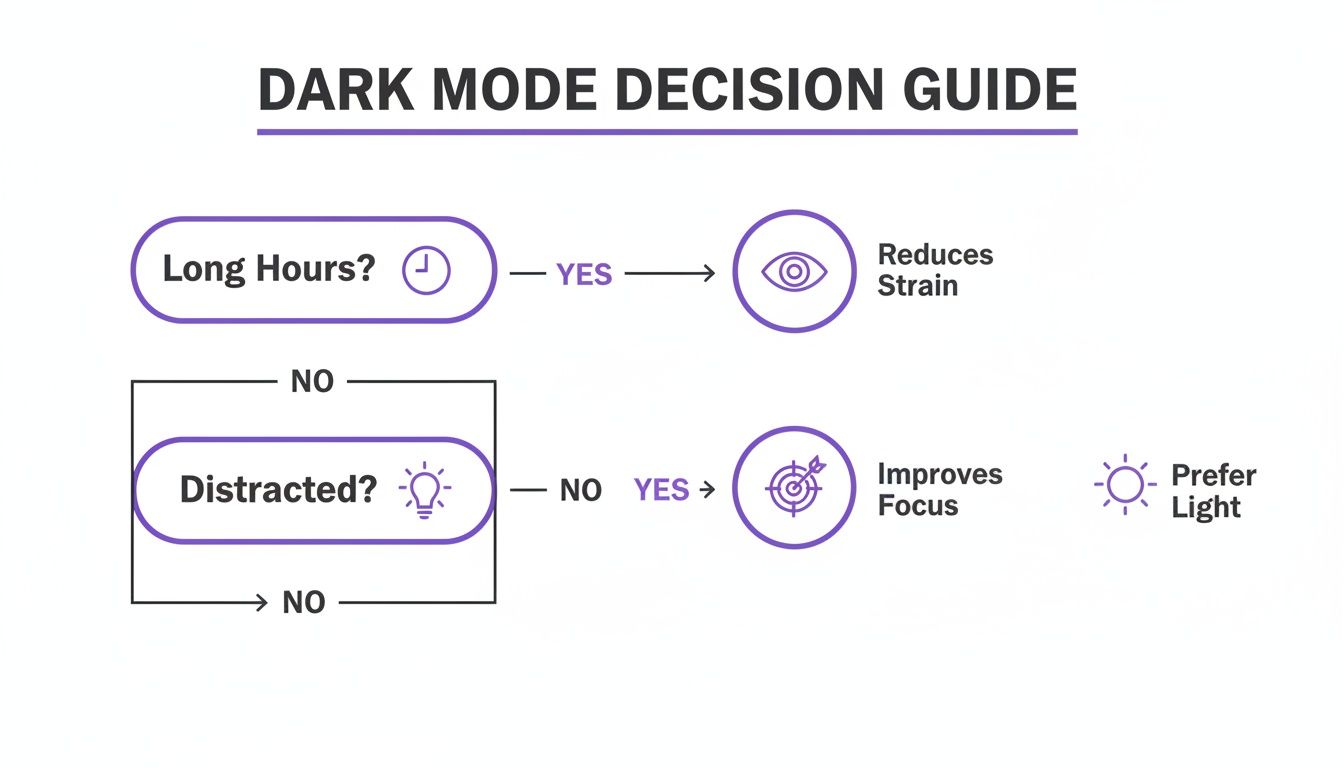
As you can see, the real benefits of dark mode kick in when they address common pain points—less eye strain helps with those marathon work sessions, and better focus is a lifesaver when distractions are everywhere.
Honestly, for most people, the native Jira dark mode is the best place to start. It's stable, secure, and you never have to think about it again. Only venture into apps or extensions if you have a specific customisation need that the built-in theme just can't handle.
Jira Dark Mode Methods at a Glance
To make this even clearer, I've put together a quick comparison of the main approaches. This should help you figure out which method fits your needs without having to dig through documentation.
| Method | Best For | Pros | Cons | | :--- | :--- | :--- | :--- | | Native Theme | Most users, especially in large organisations that prioritise stability and simplicity. | Officially supported, completely stable, secure, and costs nothing extra. | Customisation options are practically non-existent. | | Marketplace App | Teams that need to align Jira with company branding or want advanced theming controls. | In-depth customisation, brand consistency, and often includes bonus features. | Typically comes with a subscription cost and needs careful vetting by an admin. | | Browser Extension | Individual users who want a quick, no-fuss dark theme without needing admin approval. | Super easy to install, usually free, and provides instant results. | Unofficial, likely to break with Jira updates, and can pose security risks. |
In the end, it's a classic trade-off between convenience and control. A browser extension is the fastest solution, but also the least reliable. A Marketplace app gives you all the power you could want, but it adds another layer of complexity and cost. For a dependable, set-it-and-forget-it experience, the native dark theme from Atlassian is the hands-down winner for the vast majority of Jira users.
How to Activate the Native Dark Theme in Jira
For most teams, sticking with the official, built-in Jira dark mode is the way to go. It’s the cleanest and most reliable option out there—stable, secure, and best of all, you don’t need to get admin approval or install anything extra just to use it.
Getting it switched on is pretty simple, though the steps are a little different depending on whether you’re on Jira Cloud or a Data Center/Server instance. Let's get into it.
This feature wasn't just a whim from Atlassian; it was a direct response to a massive outcry from the community. For years, users, especially those in enterprise environments, were clamouring for a darker theme to make those long hours staring at screens a bit easier on the eyes. The main ticket for this feature on Atlassian's public issue tracker racked up over 1,000 votes, which in the world of software development, is a pretty loud and clear signal.
Enabling Dark Mode in Jira Cloud
If you're a Jira Cloud user, good news: you’re in complete control. Toggling dark mode is a personal setting, and it takes less than a minute.
First, find your profile avatar tucked away in the bottom-left corner of the main navigation bar and give it a click. This brings up your profile and settings menu.
From that menu, choose Personal settings, which will whisk you away to your main Atlassian account profile page. Look for the Theme section. You’ll see the simple choice between Light and Dark. Just select Dark, and the change happens instantly across your entire Jira Cloud environment.
Because this setting is linked to your account, it’ll follow you around, staying active on any browser or device you're logged into.
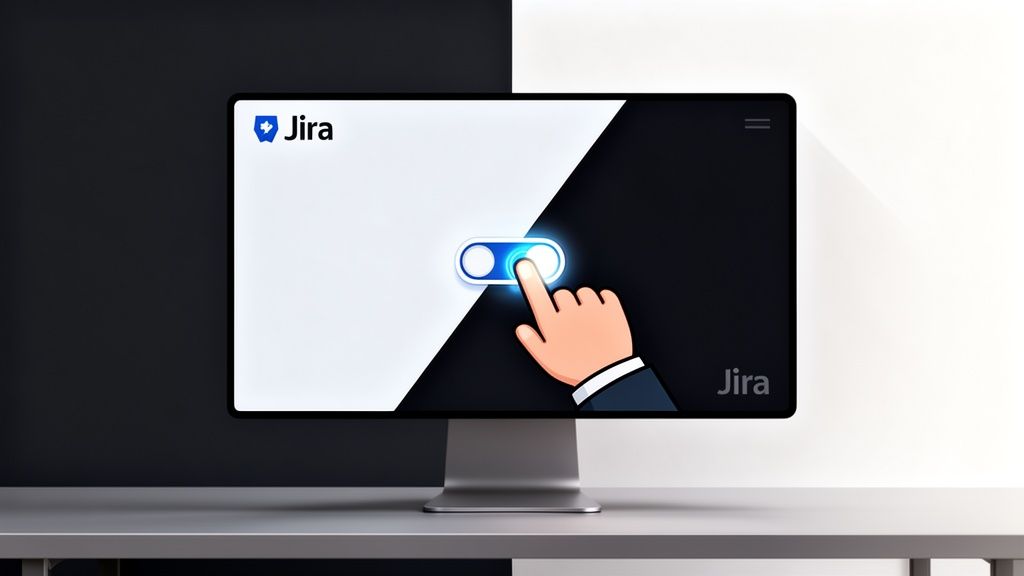
Here’s exactly what that toggle looks like in your settings. A simple flick of the switch is all it takes.
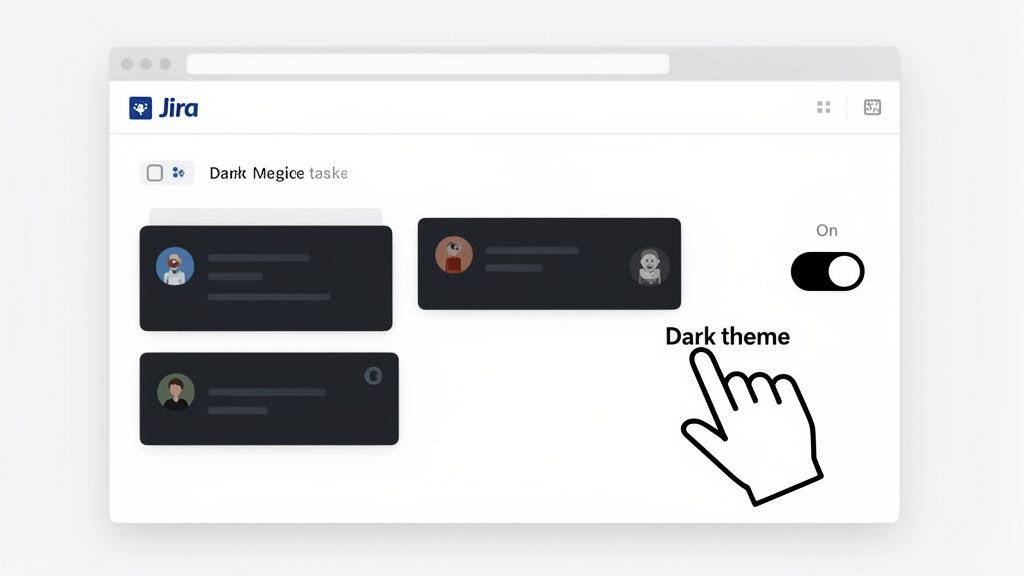
As you can see, it's incredibly straightforward. No hoops to jump through.
Activating Dark Mode in Jira Data Center and Server
For those of us on self-hosted versions like Jira Data Center (or a recent Server edition), there's a small catch. You'll need to have a quick word with your Jira administrator first. Atlassian only brought native theming into the on-premise world from specific versions onwards, so the first hurdle is making sure your company's instance is actually new enough.
In Data Center, an admin has to flip the main switch to enable themes for everyone. Once that’s done, you and your colleagues can each choose your own theme, just like on Cloud.
So, assuming your admin has given the green light and enabled themes, you can turn on dark mode for yourself by following these steps:
- Click on your profile icon in the top-right corner of the screen.
- From the dropdown that appears, select Profile to get to your user settings.
- Find the Theme setting in your profile options.
- Simply choose Dark from the list.
What if you don't see the option? It almost certainly means one of two things: either your organisation's Jira instance is on an older version that doesn't support themes, or the admin just hasn't enabled the feature yet. A quick message to your IT department is the best course of action here. They'll be able to confirm the version and, hopefully, switch it on for everyone.
Go Deeper with Marketplace Apps
Jira’s native dark mode is a great addition, but let's be honest—it's pretty basic. For many teams and organisations, a simple on/off switch just doesn't cut it. If you're looking for more granular control, need to align Jira with your company's branding, or want to offer your team a few different visual styles, you’ll need to turn to the Atlassian Marketplace. It's packed with theming apps that let you do so much more than just go dark.
Think of it this way: these apps unlock a whole new level of personalisation. A Jira admin, for instance, can build a custom dark theme using brand-approved colours and then roll it out across the entire company. This is a big deal in larger organisations where maintaining a consistent look and feel across all internal tools is non-negotiable.

Other apps take a different approach. They might let an admin curate a handful of pre-approved themes. This gives users the freedom to pick a style they like without going completely off-piste, striking a really nice balance between individual preference and corporate consistency.
Popular Theming and Dark Mode Apps
Once you start digging into the Marketplace, you'll see a few names pop up again and again. Apps like Theme & Style for Jira or Dark Theme for Jira & Confluence are well-regarded for a reason, each bringing a different set of features to the table. These tools give you incredibly detailed control over almost every pixel on the screen.
With a good theming app, you can typically fine-tune all sorts of visual elements:
- Colour Palettes: Go beyond light and dark. Set precise hex codes for backgrounds, text, links, and more.
- Header and Footer Customisation: Easily add your company logo or custom navigation links to make Jira feel truly your own.
- Syntax Highlighting: Adjust the colours used in code block macros to improve readability for your development team.
This level of detail is a game-changer for organisations where brand identity is everything. I've worked with design agencies that wanted their project management tool to reflect their creative vibe—a generic dark theme was never going to work for them. With a Marketplace app, they were able to craft a Jira interface that felt like a seamless extension of their brand.
The real power of Marketplace apps isn't just about tweaking colours. It’s about giving administrators centralised control over the UI. Native dark mode is a personal choice, but a theming app lets you manage and enforce visual standards across the board.
What to Consider Before You Install
Before you dive in and install the first app you see, it’s worth taking a moment to think through a few practicalities. First off, most of these powerful theming tools come with a price tag, so you’ll need to budget for the subscription. The cost is usually tied to the number of users in your Jira instance.
It’s also crucial to double-check compatibility. The best app developers are usually on the ball with supporting the latest Jira releases, but you should always confirm that the app works with your specific version, whether it's Cloud or Data Center. I also make a habit of reading recent user reviews. They can offer a goldmine of information about the app's performance and how responsive the developer's support team is. A little bit of homework up front will help you find a Jira dark mode solution that delivers the perfect blend of customisation, control, and reliability your team needs.
An Admin's Guide to Rolling Out Jira Dark Mode
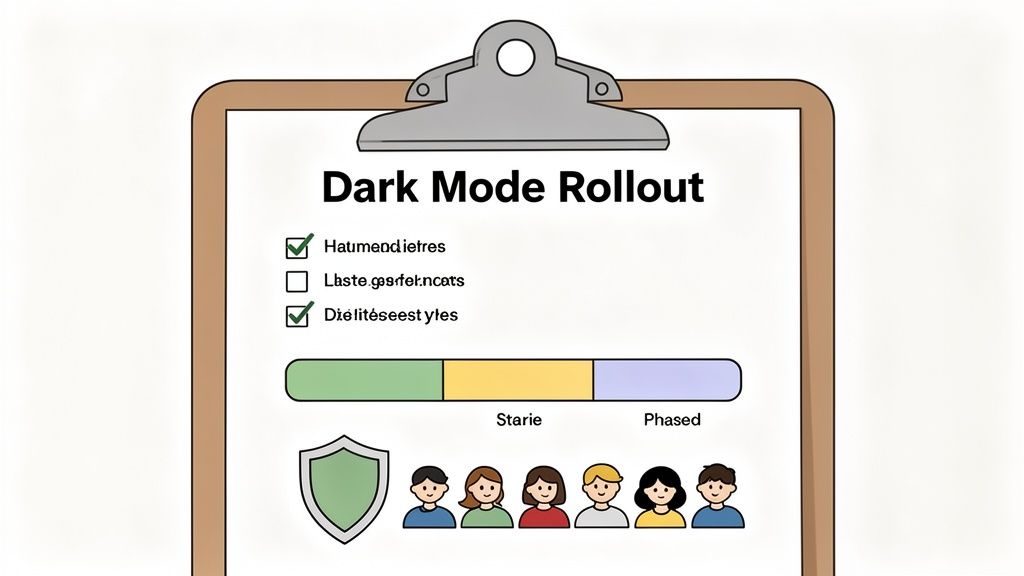
Rolling out Jira dark mode across a whole company isn't as simple as flicking a switch. For any Jira admin or IT manager, a smooth launch needs a proper strategy that puts user experience first without sacrificing stability. It’s a genuine project that demands careful planning, a bit of testing, and solid communication.
Without a plan, an abrupt switch can open the floodgates for support tickets. You might suddenly hear that critical third-party apps are rendering strangely, custom UI elements are impossible to read, or exported reports are coming out as blank pages. A proactive approach is the only way to sidestep these headaches and ensure the transition is seen as a welcome upgrade, not a frustrating mess.
This is particularly true if your Jira instance is heavily customised. If you followed the long history of the community's request for a native dark theme on Jira Server and Data Center, you'll know how complex enterprise needs are. Companies were juggling localisation, accessibility requirements, and unique branding—all things that can break with a simple theme change.
Building Your Phased Rollout Plan
Let's be clear: a "big bang" launch, where you enable dark mode for everyone at once, is almost always a bad idea. A much smarter way is to roll it out in phases. This lets you find and squash bugs with a small, controlled group before the rest of the organisation is affected, minimising risk and building positive momentum.
Try structuring your rollout in a few key stages:
- The Pilot Crew (IT & Tech Leads): Start with a small group of your most tech-savvy users. They’re the best people to spot obscure bugs in developer tools or integrations and can provide high-quality, detailed feedback.
- Expanded Testing (Department Champions): Next, bring in a few key people from different departments—think Marketing, HR, Finance. This is your chance to make sure department-specific workflows and apps are working as expected.
- General Availability (Company-Wide): After you've gathered feedback and fixed the big problems, you're ready. Announce the feature to everyone, armed with clear instructions and helpful support resources.
This methodical approach turns a potentially disruptive update into a smooth, well-managed transition that people will actually thank you for.
Your Pre-Launch QA Checklist
Before you kick off each phase, you need a solid quality assurance (QA) process to catch problems early. Don't just glance at the main dashboard and call it a day. A thorough checklist ensures every nook and cranny of your Jira instance is ready for the new look.
Don't ever assume everything will just work. From my experience, custom fields, third-party macros, and old service desk portals are where things usually fall apart. Diligent testing is what separates a seamless rollout from a chaotic one.
Make sure your QA checklist covers these critical areas:
- Marketplace App Compatibility: Check that your most important apps—time tracking, reporting, diagramming tools—display correctly. Pay special attention to charts, graphs, and any custom UI panels they add.
- Custom UI Elements: If you've used custom HTML, CSS, or JavaScript to tweak the Jira interface, test these modifications carefully. This is a common spot for contrast and visibility issues to pop up.
- Service Desk Portal Visibility: Take a look at your customer-facing portal. Are request forms, knowledge base articles, and branding elements still clear and readable for external users?
- Data Exports: Confirm that exported files, especially CSVs and PDFs, are legible. It's surprisingly common for dark theme styling to "bleed" into exports, giving you white text on a white background.
- Accessibility Compliance: Lastly, use your browser's developer tools or an accessibility checker to make sure text and UI elements meet minimum contrast ratios. This ensures the theme is genuinely usable for everyone.
Common Questions About Jira Dark Mode
Even with a seemingly simple feature like Jira dark mode, it's natural for a few questions or snags to arise. Let's walk through some of the most common queries we see from Jira users and admins, so you can get things sorted out quickly.
Why Can't I See the Dark Mode Option in My Jira Cloud?
So, you've gone to your personal settings, and the dark mode toggle is nowhere to be found. Don't worry, this is actually pretty common. Atlassian often releases new features in waves, which means it might not have been activated for your specific account or instance just yet.
Before you jump to creating a support ticket, your first port of call should be your Jira administrator. They usually have the inside scoop on your instance's update schedule. If you are the admin, the best places to look are the official Atlassian cloud roadmap and their release blogs for the latest on feature rollouts.
Can I Customise the Colours in the Native Jira Dark Mode?
Unfortunately, the out-of-the-box dark theme is a "what you see is what you get" deal. Atlassian designed it as a single, pre-set theme optimised for general readability, so there are no built-in options to tweak the colours.
If you need Jira's interface to match your company branding or require specific colour adjustments for accessibility reasons, your best bet is a dedicated theming app from the Atlassian Marketplace. These tools are built from the ground up for this kind of advanced customisation.
Does Dark Mode Work With All My Marketplace Apps?
This is a really important one to check. While the native dark theme works flawlessly with core Jira functionality, its behaviour with third-party Marketplace apps can be a mixed bag. The good news is that most modern, well-maintained apps will automatically detect and adapt to your chosen theme.
However, you might find that some older or less frequently updated apps stick to their original light styling, which can create a jarring and inconsistent look. The best practice here is to test your most critical apps in a sandbox or staging environment after enabling dark mode. This lets you catch any weird rendering issues before they disrupt your team's day-to-day work.
Will Enabling Dark Mode Slow Down My Jira Instance?
For the most part, no. The native Jira dark mode is baked into the platform and highly optimised, so you shouldn't notice any impact on your instance's performance. Reputable Marketplace apps are also generally built for efficiency. Still, it never hurts to glance at recent user reviews for any comments on performance before installing a new app.
Browser extensions are the wild card here; they're the most likely to add a slight performance overhead. If rock-solid stability and speed are your top priorities, sticking with the official native solution is always the safest choice.
At Acquispect, we believe in a world where your proven skills speak louder than words. We're building the trust layer for a meritocratic digital economy, moving beyond resumes to verifiable credentials.
Discover how we're changing the future of work at https://acquispect.com.